
Digital clutter accumulates quietly. Downloads multiply, photos appear on several devices, old accounts remain open, and important documents become mixed with temporary files. The result is more than visual mess. It can make backups harder to understand, increase the amount of personal information exposed through forgotten services, and waste time whenever a specific file is needed.
A digital declutter should reduce that burden without creating a new risk. Deleting everything quickly is not the goal. The safer approach is to identify what matters, preserve it appropriately, remove what has no continuing purpose, and leave behind a system that is simple enough to maintain. Work in short sessions and complete one category before opening another.
Map What You Have Before Deleting Anything
Begin with an inventory. List the devices, cloud services, email accounts, storage drives, and major apps currently in use. Include older phones, computers, memory cards, and external drives stored in drawers. Add work, school, financial, health, household, and creative records that may have retention requirements or lasting personal value.
This map does not need to identify every file. Its purpose is to show where important data might live and where duplicates are likely. Mark each location as active, archival, temporary, shared, or unknown. Unknown storage deserves review before deletion because it may contain the only copy of something important.
Create a Backup You Can Understand
Decluttering and backup are different jobs. A synchronized folder can mirror accidental deletions, and a permanently connected drive may be affected by malware or ransomware along with the computer. Important files should have protected copies that are not all exposed to the same failure.
Before a large cleanup, back up irreplaceable records such as family photos, tax documents, signed agreements, and original creative work. Follow the backup guidance appropriate to the device or service, and consider keeping one copy separate from the everyday system. Encryption may be appropriate for sensitive archives, provided the recovery key or password is stored safely.
Test the backup instead of assuming it worked. Open a selection of documents, photos, and videos from the backup location. Confirm that folder names, dates, and file formats remain usable. A backup that cannot be restored is not a dependable safety net. Keep a separated backup connected only as long as necessary. Record when it was created, what it contains, and how it can be restored. Periodically repeat the test because storage media, credentials, and file formats can fail or become obsolete.
Organize Files Around Retrieval
A good folder structure answers a practical question: where would you look for this later? Use a small number of broad top-level folders such as Personal, Household, Financial, Work, Photos, and Archive. Add subfolders only when they separate material that is regularly retrieved. Deep, elaborate trees often create new clutter.
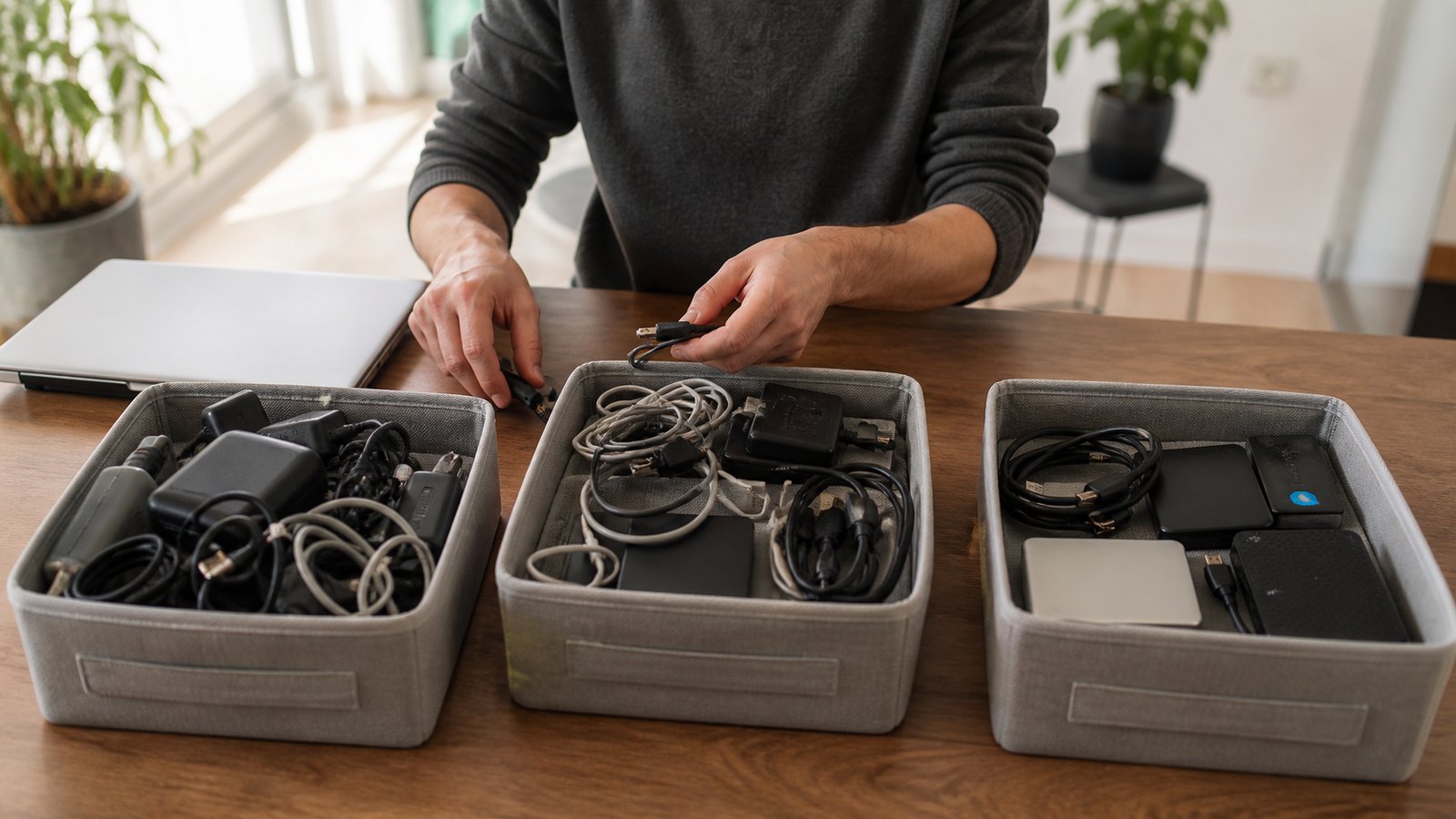
Use file names that remain meaningful outside the folder. A pattern such as 2026-08-insurance-renewal.pdf is more useful than scan004.pdf. Dates written year-month-day sort naturally. Avoid renaming application files or system folders whose behavior you do not understand. The cleanup should focus on personal data, not components required by software.
Process obvious clutter first: duplicate downloads, outdated installers, failed exports, empty folders, and screenshots with no continuing value. Then review larger or sensitive categories more carefully. When uncertain, move an item to a dated review folder rather than deleting it immediately. Set a future date to decide whether that folder is still needed.
Triage Photos Without Chasing Perfection
Photo libraries can consume an entire cleanup project. Work by month, event, or trip rather than scrolling through every image at once. Remove accidental shots, exact duplicates, unreadable images, and screenshots that have served their purpose. Keep the best version of repeated scenes instead of trying to preserve every near-identical frame.
Before merging libraries, confirm which service holds the original resolution and whether edits, albums, captions, or shared links will transfer. Downloading and uploading may change metadata or create more duplicates. Preserve meaningful context by naming important albums and checking dates, especially for scanned photos whose original capture date may be missing.
Reduce Inbox and Notification Noise
An inbox is easier to manage when messages are treated by purpose. Save records that must be retained, handle messages requiring action, and remove routine notifications that no longer matter. Search by recurring sender to review batches of newsletters, receipts, alerts, or automated reports. Unsubscribe through trustworthy controls when a message is legitimate and no longer useful. Suspicious messages should be deleted or reported rather than interacted with.
Audit app notifications at the operating-system level. Keep alerts that are timely and important, such as security warnings or direct communication from essential contacts. Disable promotional and repetitive alerts that encourage constant checking. Fewer interruptions make the remaining signals easier to notice.
Close Accounts You No Longer Need
Forgotten accounts may retain names, addresses, purchase histories, photos, contacts, or payment methods. Search password-manager entries, old email receipts, and app-store histories to identify services that are no longer used. Visit the service directly rather than following an unexpected account-deletion link.
Before closing an account, export information that must be retained, cancel active subscriptions, resolve balances, and check whether the account controls another login. Remove stored payment methods and connected apps when appropriate. Deactivation and deletion may mean different things, so read the service’s explanation and retain confirmation.
For accounts that remain, use unique passwords and enable multifactor authentication where available. Review recovery email addresses, phone numbers, active sessions, third-party access, and privacy settings. Security questions should not rely on answers easily found in public profiles.
Remove Software and Browser Buildup
Review installed applications by last use and purpose. Uninstall software through the device’s normal process rather than dragging random program files into the trash. Keep operating systems, browsers, security tools, and necessary applications updated. Unsupported software can create risk even when it is rarely opened.
Downloads deserve a recurring reset. Move records to their permanent folders, delete temporary items, and scan unfamiliar files before opening them. Treat unexpected attachments and executable files cautiously.
Retire Devices Without Leaving Data Behind
Deleting visible files or emptying the recycle bin may not adequately remove personal information from a computer. Before selling, donating, recycling, or discarding a device, back up needed data and sign out of accounts and services. Remove the device from account lists, disable activation locks when required for transfer, and disconnect paired accessories.
Use the manufacturer’s reset or secure-erasure instructions for the specific device and storage type. The appropriate method can differ for computers, phones, tablets, and external drives. If the device cannot be securely erased, a reputable recycling or destruction service may be appropriate. Do not place electronics or storage media in ordinary trash where local rules prohibit it.
After the reset, verify that the device starts at its initial setup screen and no longer appears as an active trusted device in important accounts.
Maintain a Smaller Digital Footprint
A successful declutter ends with repeatable habits. Set a brief monthly review for downloads, screenshots, inbox subscriptions, and recently installed apps. Schedule a broader quarterly review for backups, account access, browser extensions, and storage use. Once or twice a year, revisit archived folders and unused services.
Digital decluttering is not a one-time purge. It is a controlled reduction of files, accounts, and distractions while preserving recoverability and security. A modest system maintained consistently is safer and more useful than a perfect structure that no one can sustain.